How to Animate Old Photos with AI: Make Ancestors Move
Learn how to animate old photos with AI. Make ancestors move, smile, and come alive using photo animation tools.
The Moment a Photograph Starts to Move
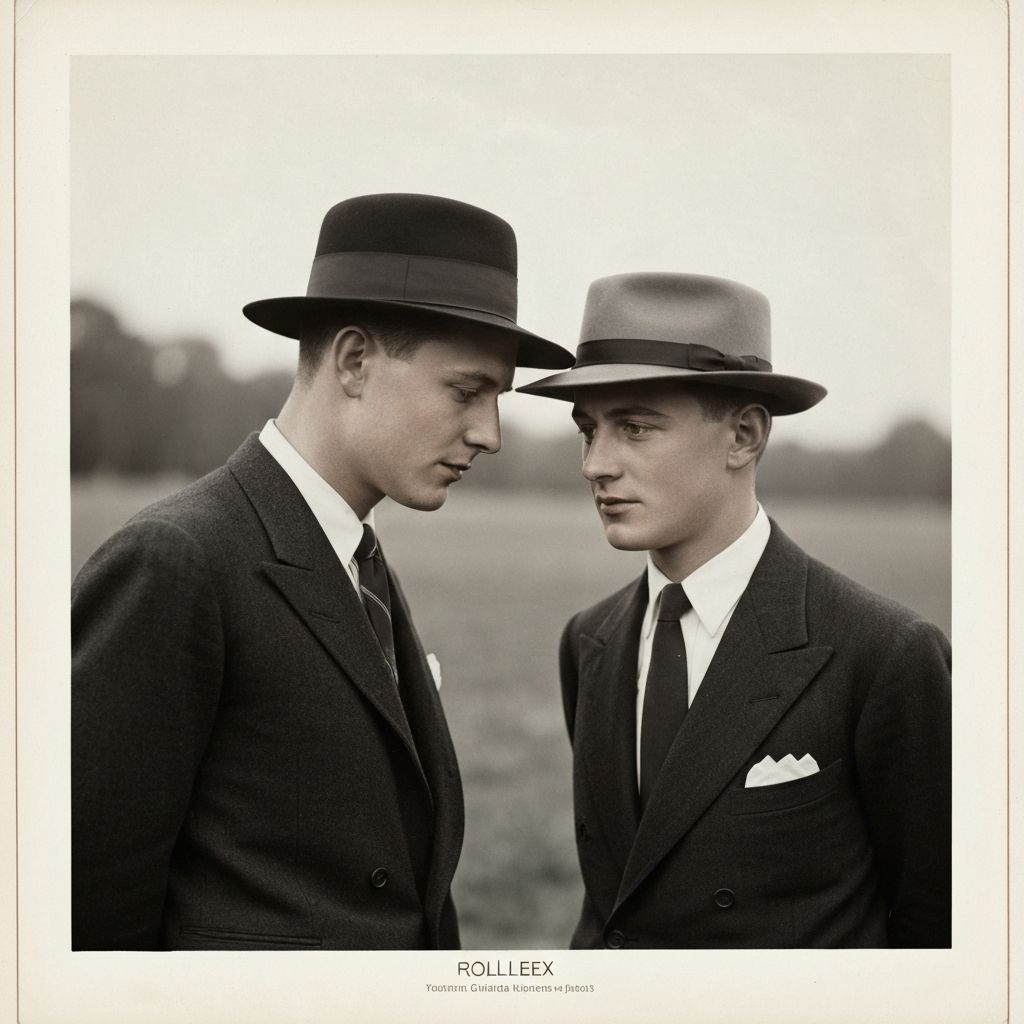
There is something uncanny and deeply moving that happens the first time you see a still photograph of a deceased loved one begin to move. The eyes shift slightly. The head turns. The lips part as if about to speak. Your rational mind knows it is artificial — generated by an AI model that predicts how a face would move — but your emotional response is immediate and involuntary. For a fraction of a second, that person is alive again.
AI photo animation has become one of the most powerful and popular uses of artificial intelligence in the consumer space. What started as a novelty — remember when Deep Nostalgia went viral in 2021? — has matured into a sophisticated technology that produces remarkably natural-looking results. And for the millions of people who have old photographs of relatives they have lost, it is far more than a novelty. It is a way to connect with the past that no static image can match.
How AI Photo Animation Works
Understanding the technology helps set realistic expectations about what animation can and cannot do.
Face Detection and Mapping
The AI first identifies all faces in the photograph and maps their geometry — the position and shape of eyes, eyebrows, nose, mouth, jaw, and forehead. This creates a 3D model of the face from a 2D image.
Motion Transfer
A pre-recorded "driving video" of real human movement provides the motion template. The AI applies this motion to the 3D face model, warping the original photograph to match each frame of movement. Modern systems use multiple driving sequences to produce varied, natural-looking animations.
Inpainting and Synthesis
When the face turns or moves, areas that were not visible in the original photo become exposed — the side of the head, behind the ear, the area behind a moving jaw. The AI generates this missing content in real time, matching the style and texture of the original image.
Temporal Smoothing
The AI ensures that the animation is smooth across frames, preventing jitter, flicker, or sudden jumps. Advanced models also handle accessories — glasses, hats, jewelry — moving them consistently with the face.
The result is a short video, typically 5-15 seconds, in which the person in the photograph appears to move naturally. Restory's Bring Photos to Life feature produces these animations at up to 720p resolution, creating videos you can share directly with family. You can see this feature alongside Restory's five other AI tools on the features page.
What Makes a Good Source Photo for Animation
Not every photograph produces equally good results. The AI needs clear facial features to work with, and certain characteristics in the source image dramatically affect quality.
Ideal Source Photos
- Clear, front-facing portraits — the more directly the person faces the camera, the better
- Good facial detail — the AI needs to see eyes, nose, and mouth clearly
- Moderate to high resolution — at least 500 pixels across the face
- Neutral or slight expression — a relaxed face gives the AI the most room to animate convincingly
- Even lighting — harsh shadows complicate the 3D modeling
Photos That Need Preparation First
- Blurry or damaged faces — restore the face first using AI face restoration, then animate
- Very small faces — in group photos, individual faces may be too small. Crop and enhance first
- Profile or three-quarter views — these work but produce less dramatic results than front-facing shots
- Heavy damage — scratches across the face should be removed before animation
Photos That Do Not Work Well
- Faces turned more than 45 degrees from the camera
- Faces mostly in shadow with limited visible detail
- Very low resolution where facial features are fewer than 100 pixels across
- Multiple overlapping faces at similar sizes
Step-by-Step: Animating an Old Family Photo
Step 1: Choose Your Photo
Select a portrait or photo where the person's face is clearly visible. A formal studio portrait from any era works beautifully — these tend to have good lighting, direct gaze, and clear detail.
Step 2: Restore First, Animate Second
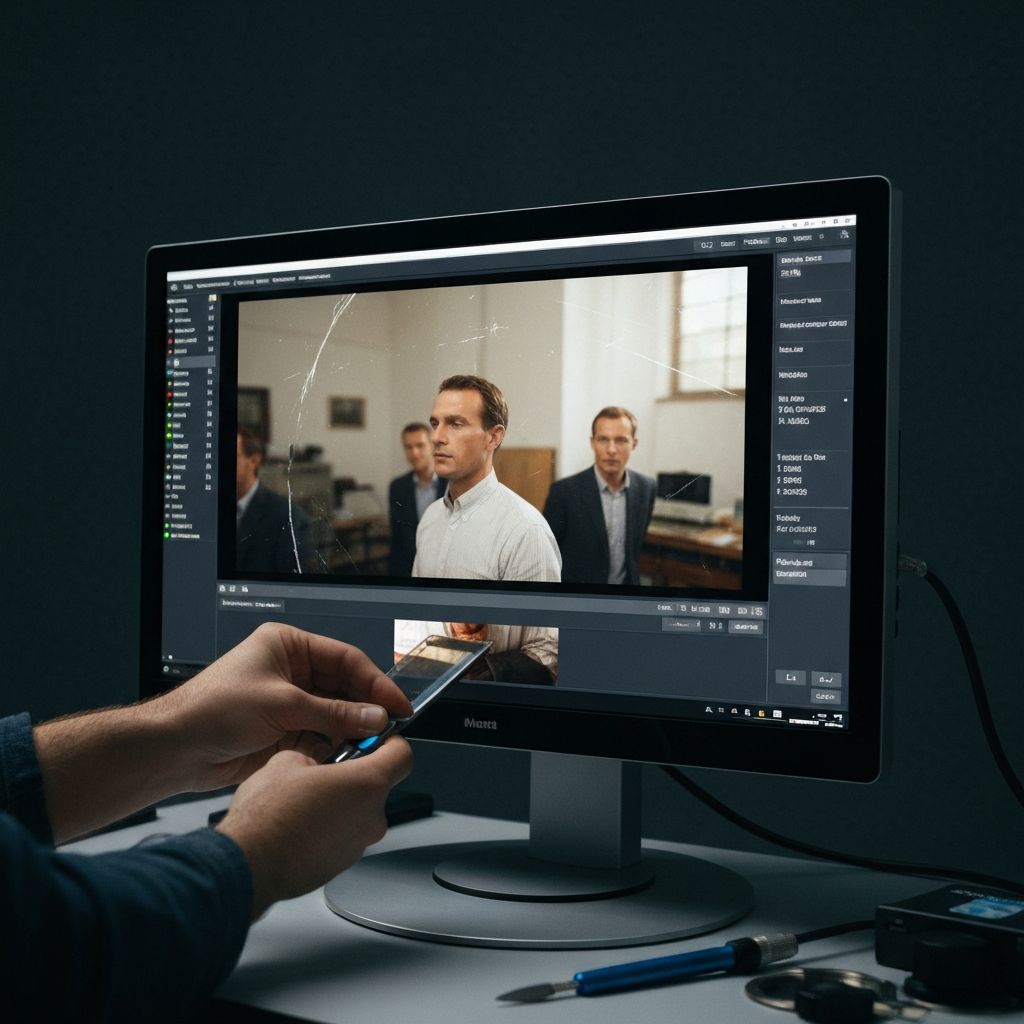
This is critical. If you animate a damaged, faded, or blurry photo, the animation will faithfully reproduce all that damage in motion — a blurry face will become a moving blurry face. Always restore the photo before animating it.
The recommended workflow:
- Remove scratches — clean away physical damage
- Restore faces — bring facial detail back to clarity
- Enhance — upscale for better animation quality
- Colorize (optional) — color makes animation feel even more lifelike
- Animate — apply the Bring Photos to Life feature as the final step
If you are working with genealogy photos, our guide on restoring ancestor photographs for family history research covers the full preparation workflow.
Step 3: Upload and Animate
Open Restory and upload your restored photo. Select the Bring Photos to Life feature. The AI will process the image and generate your animated video in moments.
Step 4: Share With Family
The emotional impact of these animations is amplified enormously when shared with people who knew the person in the photograph. Send it to your family group chat. Show it to your grandparents on their tablet. Play it at a family gathering. The reactions are almost always tears followed by stories.
The Emotional Power of Photo Animation
What makes animated old photos so affecting is the violation of a boundary we take for granted: still photographs do not move. We have a lifetime of experience looking at photos of deceased relatives as frozen, static images. When that boundary breaks — when grandma's eyes shift and her head tilts — it triggers a recognition response that bypasses rational thought and goes straight to emotion.
Families use these animations in powerful ways:
- Memorial services — a slowly animated portrait of the deceased, displayed on a screen, creates a deeply moving focal point
- Family reunions — animated ancestors become conversation starters that unlock stories from older relatives
- Genealogy presentations — animated photos of distant ancestors captivate audiences in ways static images cannot
- Personal healing — for people processing grief, seeing a loved one "move" again can be profoundly comforting
The Technology Behind Restory's Animation
Restory's Bring Photos to Life feature uses state-of-the-art face animation models that go beyond simple warping. The technology:
- Generates natural blink patterns — the eyes close and open at realistic intervals
- Produces subtle head movement — gentle turns and tilts that mimic natural human motion
- Handles mouth movement — slight opening and closing that suggests breathing
- Manages hair and accessories — elements around the face move consistently
- Outputs at 480p or 720p — high enough quality for sharing on social media or displaying on a TV
The animation runs 5-15 seconds and is designed to feel contemplative and natural rather than dramatic or exaggerated. The goal is not to make a deepfake but to create a brief, moving tribute that honors the person in the photograph.
Animation vs. Other AI Photo Features: When to Use What
| Goal | Feature to Use | When |
|---|---|---|
| See facial details clearly | Restore Faces | Blurry or damaged portraits |
| Remove physical damage | Remove Scratches | Scratched, stained, or creased photos |
| Make a small photo larger | Enhance | Wallet photos, cropped sections |
| Add color to B&W photos | Colorize | Pre-1960s black and white images |
| Reconstruct missing parts | Recreate | Torn, incomplete, or heavily damaged |
| Create a moving portrait | Bring Photos to Life | Clear portraits, after restoration |
Animation is the final step in the chain. It builds on every other restoration feature and produces the most dramatic results when the source photo has already been restored, enhanced, and optionally colorized.
Common Questions About Photo Animation
Is it respectful to animate photos of deceased people?
This is a personal and family decision. Most people find it moving and celebratory — a way to honor someone's memory by bringing them closer to the present. However, some may find it uncomfortable. Share animations with sensitivity, and always ask close family members before sharing publicly.
Can I animate group photos?
Yes, but the AI typically animates one face at a time. For best results with group photos, crop individual faces, restore and animate them separately, then share them as a collection.
Does the animation look realistic?
Modern AI animation is remarkably convincing for short clips. It is not indistinguishable from real video — there are subtle tells if you look closely — but the emotional impact does not depend on perfection. Even a slightly imperfect animation of a grandmother who passed away thirty years ago will move her family to tears.
Can I use animated photos on social media?
Absolutely. The video output from Restory can be shared directly to any platform. Animated old photos are some of the most engaging content on social media — they consistently generate strong emotional reactions and high engagement.
From Still to Stirring: Try It Today
Somewhere in your family's collection there is a photograph of someone you wish you could see move — a grandparent you barely remember, an ancestor you never met, a friend lost too soon. That photograph holds more potential than you realize. With AI animation, the still image becomes a living moment, and the person in it feels, for just a few seconds, present again.
The technology is here. It is accessible. It costs less than a cup of coffee.
Upload a portrait to Restory and watch the past come alive.